

KNPL Variance Project Documentation
Dashboard Settings - Database Backup
Steps to Access
- Login to the application using your admin credentials.
- From the Main Menu, navigate to Dashboard Settings.
- Within the settings page, locate the Database Backup section.
Standard Operating Procedure (SOP)
- Click on the Backup Database button.
- The system will generate a backup file of the current database.
- Once the backup is complete, download the backup file to a secure location.
- Verify the backup file size and timestamp to ensure it was created successfully.
- Store backups in a secure, access-controlled folder for future restoration if needed.
1. Database Backup
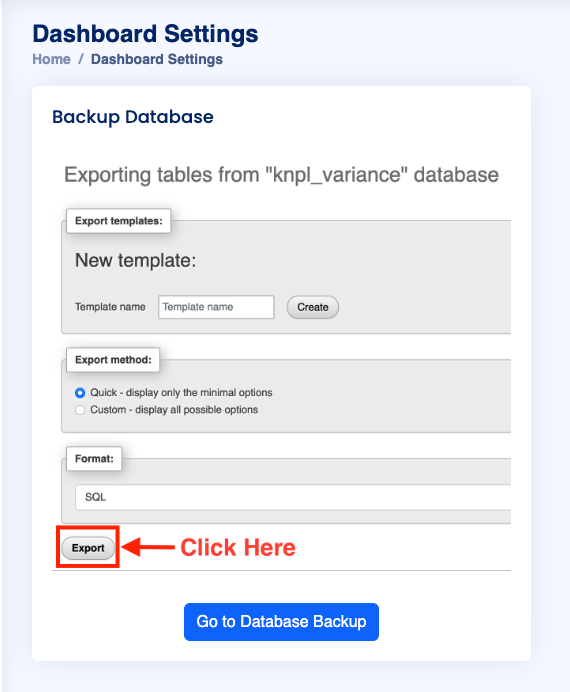
Figure: Database Backup Button in Dashboard Settings
The Database Backup option allows administrators to securely back up the system database. The backup includes all user data, configuration, and transactional records. It is recommended to perform backups regularly, preferably before making major changes to the system.
Important: Only users with admin privileges can access the Dashboard Settings and perform backups.